
If you’re searching for How to Uninstall YouTube, you’re not alone. Millions of Android users try to remove YouTube app, delete YouTube app, uninstall YouTube app, or simply remove YouTube from their phones because of storage issues, screen-time control, or just personal preference.
But here’s the real story: YouTube comes pre-installed as a system app on most Android devices, which means you can’t completely uninstall it like normal apps. You can disable it, remove updates, or use advanced tools to hide it.
This guide breaks down everything you need to know based on verified facts from Google Support, Apple Support, and trusted Android management resources. By the end, you’ll know exactly how to remove the YouTube app from Android, iPhone, Samsung, and even using ADB.
Let’s start.
Why YouTube Can’t Be Fully Uninstalled on Android
Most Android smartphones come with YouTube as a system app, which makes it non-removable through regular uninstall methods. According to Google’s official guidelines, system apps can’t be deleted unless:
• You root your device (which voids the warranty)
• You use ADB tools to remove it for the current user
• You disable the app instead of uninstalling it
This is why when people search How to Uninstall YouTube, the uninstall button is usually greyed out.
How to Uninstall YouTube on Android
Even though you cannot permanently delete the preinstalled version, these steps allow you to:
1. Stop it from running
2. Remove updates
3. Hide the app
4. Free up storage
5. Block YouTube access
These methods work on Samsung, Redmi, Realme, Vivo, Oppo, Motorola, and all Android devices.
Also read: Top 5 Gaming YouTubers in India
Method 1: Disable YouTube (Most Effective for Preinstalled Apps)
This is the closest real solution to uninstall YouTube app without root.
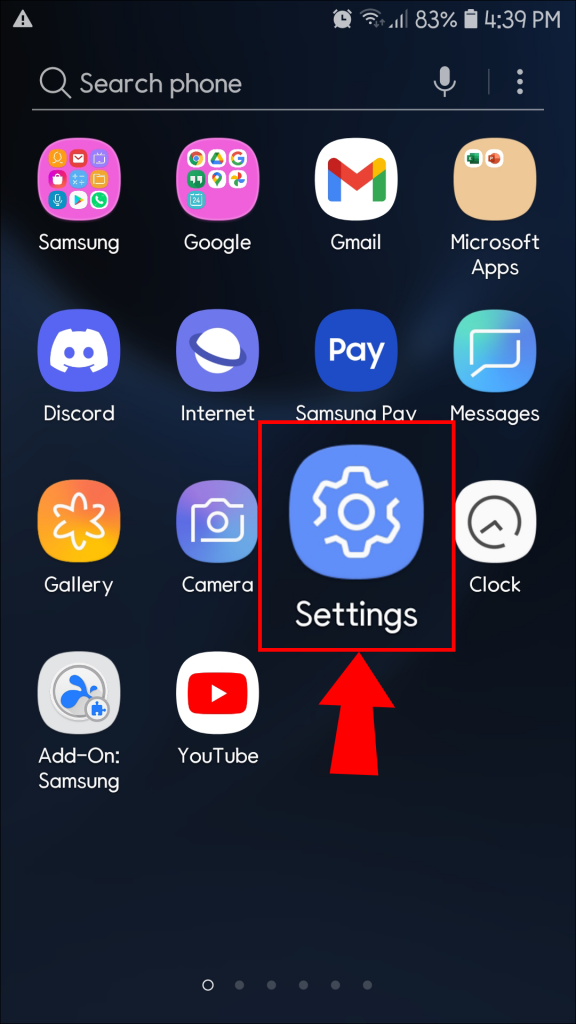
Step 1: Open Settings
Go to your device Settings.
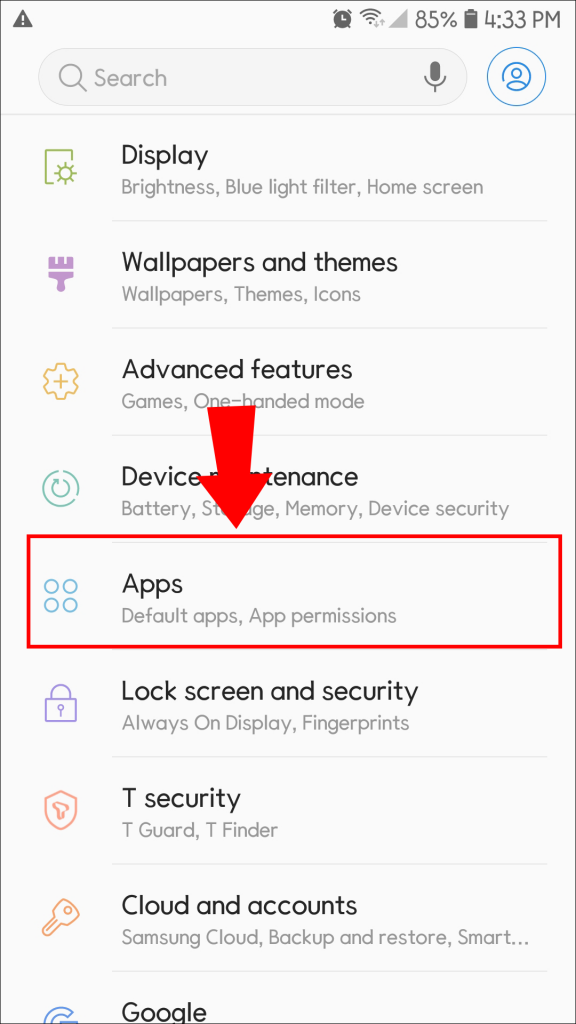
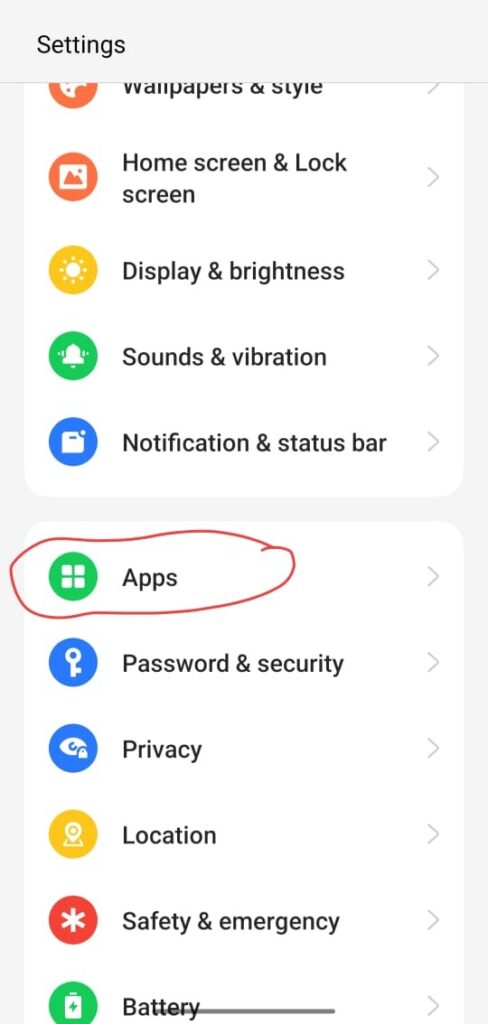
Step 2: Select “Apps”
Tap Apps or App Management.
Step 3: Find “YouTube” in the list
Step 4: Tap “Uninstall Updates”
This removes all updates and returns YouTube to its factory version.
Step 5: Tap Disable
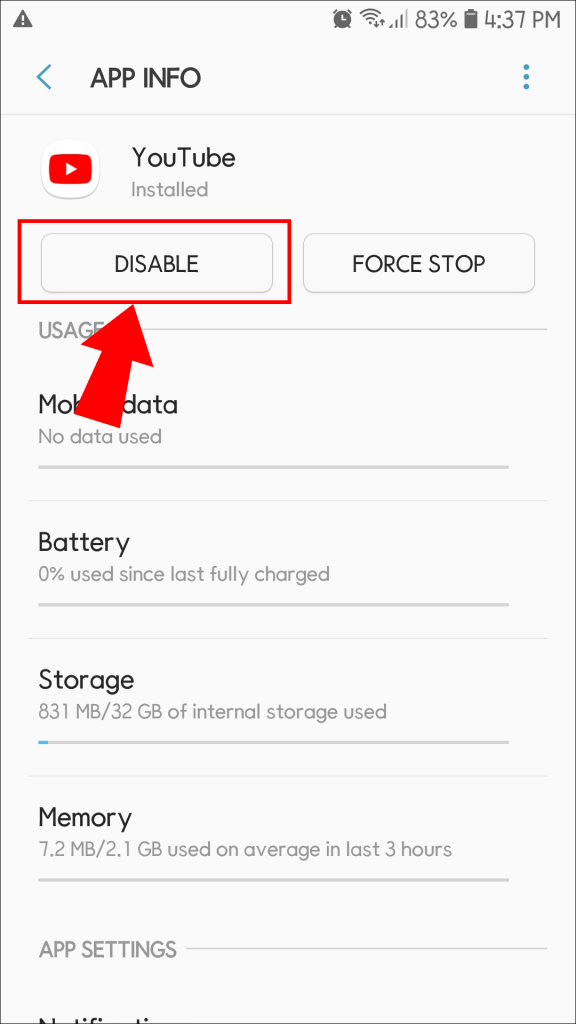
Once you disable it:
• The app disappears from your phone
• It stops running
• It stops using storage or data
• It behaves like it’s uninstalled
Even though this isn’t a complete deletion, it effectively removes YouTube from daily use.
Method 2: Force-Stop + Clear Data (To Block Usage Entirely)
Go to:
Settings → Apps → YouTube → Storage usage → Clear Data
Then tap Force Stop.
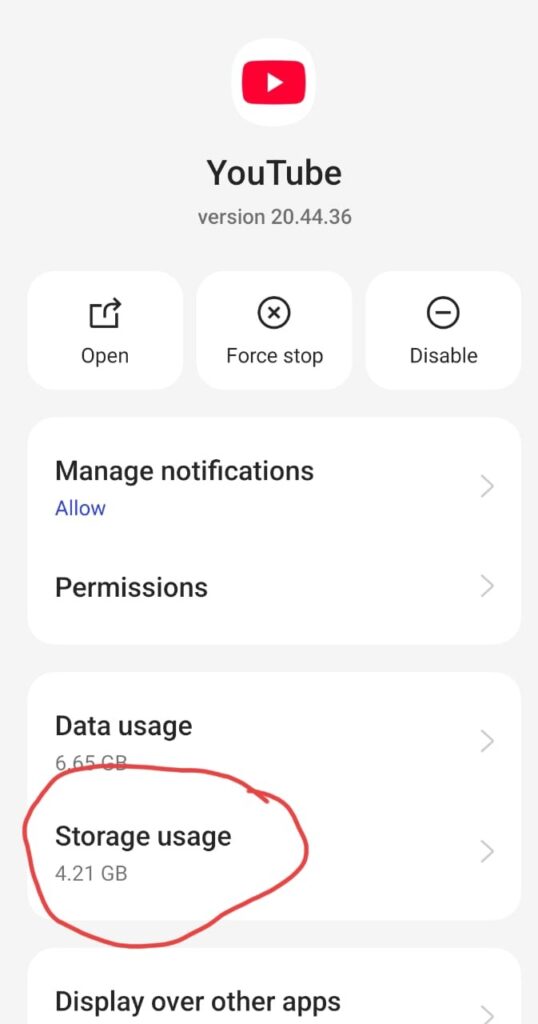

This deletes all user data, logins, recommendations, and cached files.
Method 3: Use ADB to Remove YouTube Without Root (Advanced Users)
This is the closest thing to fully uninstalling YouTube safely.
Steps:
- Install ADB on your PC
- Enable Developer Options → USB Debugging on your phone
- Connect your phone to the PC
- Run this command:
adb shell pm uninstall -k –user 0 com.google.android.youtube
This removes YouTube for your user profile without rooting.
Method 4: Hide the YouTube App (If Disable Button is Locked)
Sometimes YouTube’s disable button is greyed out. In that case, use:
- Nova Launcher
- App Hider
- Secure Folder (Samsung)
This strategy hides the app even if it can’t be deleted.
How to Uninstall YouTube on iPhone
Unlike Android, iPhone users can easily delete YouTube app in seconds.
Steps:
- Long-press the YouTube icon
- Tap Remove App
- Tap Delete App
Apple allows complete removal since YouTube is not a system app on iOS.
Why People Try to Remove or Delete YouTube App
- Reducing screen time
- Removing distractions
- Freeing up storage
- Parents trying to limit kids’ usage
- Improving productivity
- Minimising background data usage
In all these cases, disabling the app is often enough.
What Happens After You Disable YouTube?
Once disabled:
- YouTube disappears from the home screen
- You can’t open it unless re-enabled
- It stops sending notifications
- It stops consuming battery
- It stops using mobile data
For most people, disabling is the best version of How to Uninstall YouTube without root.
Can You Completely Delete YouTube Permanently?
‘Not on Android without rooting your phone.’
You can remove it for the active user via ADB, disable it fully, or hide it using tools, but a permanent removal requires system-level access.
Rooting comes with risks:
• Voids your phone warranty
• Possibility of bricking
• Security issues
This is why disabling is recommended.
Learning how to uninstall YouTube depends on your device.
Android users can’t fully remove the system app, but they can remove updates, disable it, force-stop it, or remove it with ADB.
iPhone users can delete it instantly.
Whether your goal is to reduce screen time, clean up your phone, or simply remove YouTube from view, the methods above give you complete control to remove YouTube app safely.
Conclusion
YouTube can’t be fully uninstalled on most Android devices because it comes as a system app, but you still have full control over how it behaves. You can disable it, remove updates, clear data, force-stop it, or use ADB for deeper removal. iPhone users can delete it instantly without restrictions. With these methods, you can reduce distractions, conserve storage space, and manage screen time according to your needs. This guide gives you all the practical steps to remove or disable YouTube safely and keep your device running the way you want.